User Guide
User Settings
Logging In
Learn how to log in and access your Dashboard after your account has been approved.
Overview:
Once your account has been created, you can log in to access Bids Advantage features such as the Dashboard, Contract List/Map, Proposal Workshop, and My Drafts.
A valid subscription plan is required to access these features.
How to Log In:
Click Log In in the top-right corner of the homepage.
Enter your email address and password.
Click Log In.
Alternative Login Options:
You can also log in using your Google or other connected account by selecting the corresponding option on the Login screen. This method skips manual email and password entry.
Access Requirements:
To access the Dashboard and platform features, you must have an active membership plan. If you do not have a plan, you will be prompted to select one after logging in.
Troubleshooting:
Incorrect email or password: Check spelling and try again.
Forgot your password: Click Forgot Password and follow the reset link sent to your email.
Unable to access features: Ensure you have an active subscription plan.
Login button unresponsive: Refresh the page or clear your cache and cookies, then retry.
Security Tip:
Always log out when using a shared device. To log out, click your profile icon in the Dashboard header and select Log Out.
Last Updated at
April 2, 2026 at 9:04:50 p.m.

Managing Your Drafts
Learn how automatically generated AI documents are saved, accessed, and managed in your Drafts section.
Overview:
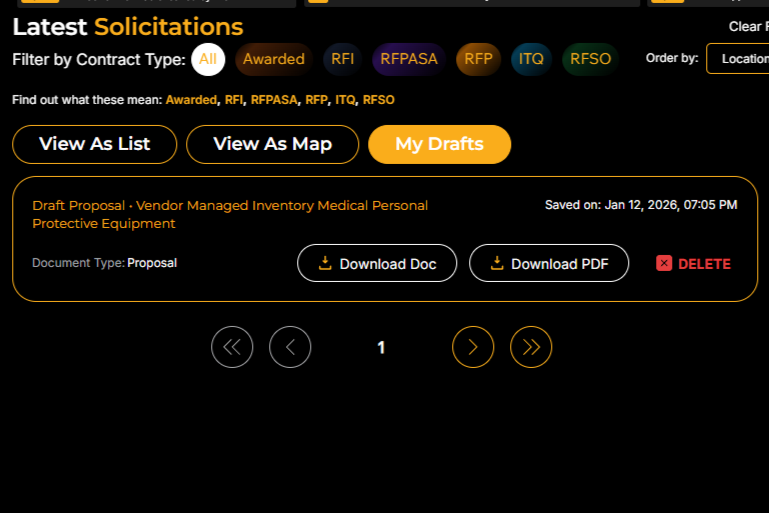
All AI-generated documents are automatically saved to your account as Drafts. This ensures that any proposals, capability statements, or compliance documents you generate remain accessible even if you leave the page or close your browser. Drafts can be revisited, downloaded, or deleted at any time from the My Drafts page.
Accessing Your Drafts:
Navigate to the My Drafts page using the sidebar menu.
Each draft is listed with its title, document type, and available actions.
Understanding the Draft Layout:
Document Title: Automatically generated based on the selected contract (for example, “RFP for Cybersecurity Enhancement Initiative – Shared Services Canada”).
Document Type: Displays the AI document category such as Proposal, Capability Statement, or Compliance Matrix.
Download Options: You can download each draft in either Word (.docx) or PDF format for review or submission.
Delete Button: Permanently removes the draft from your account.
Saving and Persistence:
Each document generated by the AI system is automatically stored in your member account. You do not need to manually save drafts. If you generate multiple versions of the same document type, each version appears as a new entry in your Drafts list.
Tips:
Use descriptive document names when downloading files to keep them organized locally.
Drafts remain accessible until deleted manually.
Download important drafts before logging out if you plan to share or edit them offline.
Troubleshooting:
Draft not appearing: Refresh your Dashboard after generation; it may take several seconds to sync.
Missing download buttons: Wait until AI processing finishes fully before refreshing.
Accidental deletion: Regenerate the document from the related contract listing using Create +.
Last Updated at
April 2, 2026 at 9:33:15 p.m.